Saving and Loading a Project
In addition to individual symbols, entire projects — including schematics, simulation setups, and associated designs — can be saved and reloaded within CircuitPro.
Saving a Project
- From the ribbon below top menu, select Save icon (or use the keyboard shortcut Ctrl+S).
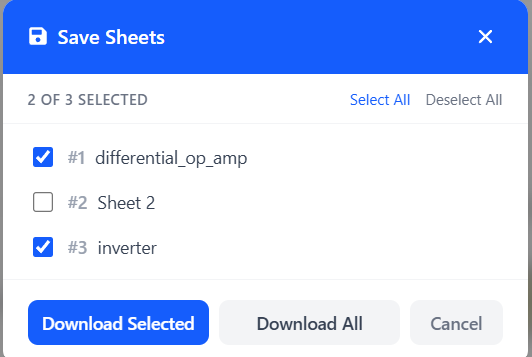
- Pop up will open asking which sheet to save. You can Save all by clicking Download all or download single or multiple sheets.
- Your files will be downloaded locally on your device in .json format.

tip
CircuitPro periodically autosaves your work, but it's good practice to save manually before closing a session or running a long simulation.
Loading a Project
- From the ribbon below top menu, select Load icon - to load whole new project or Append icon - to append in existing project.
- Browse to the project location stored on your device.
- Select .json project file and click Open.
- CircuitPro will restore the schematic canvas, symbol references, and simulation settings as they were when the project was last saved.

caution
Loading a project replaces your current work. Use Append instead if you want to add the saved project's contents to your existing project without clearing it.