Importing a Symbol
Symbols that have previously been saved to the Design Library can be imported back onto the canvas at any time.
To import a symbol from the library:
- On the Symbol Library group on the upperbar.
- Click Import.
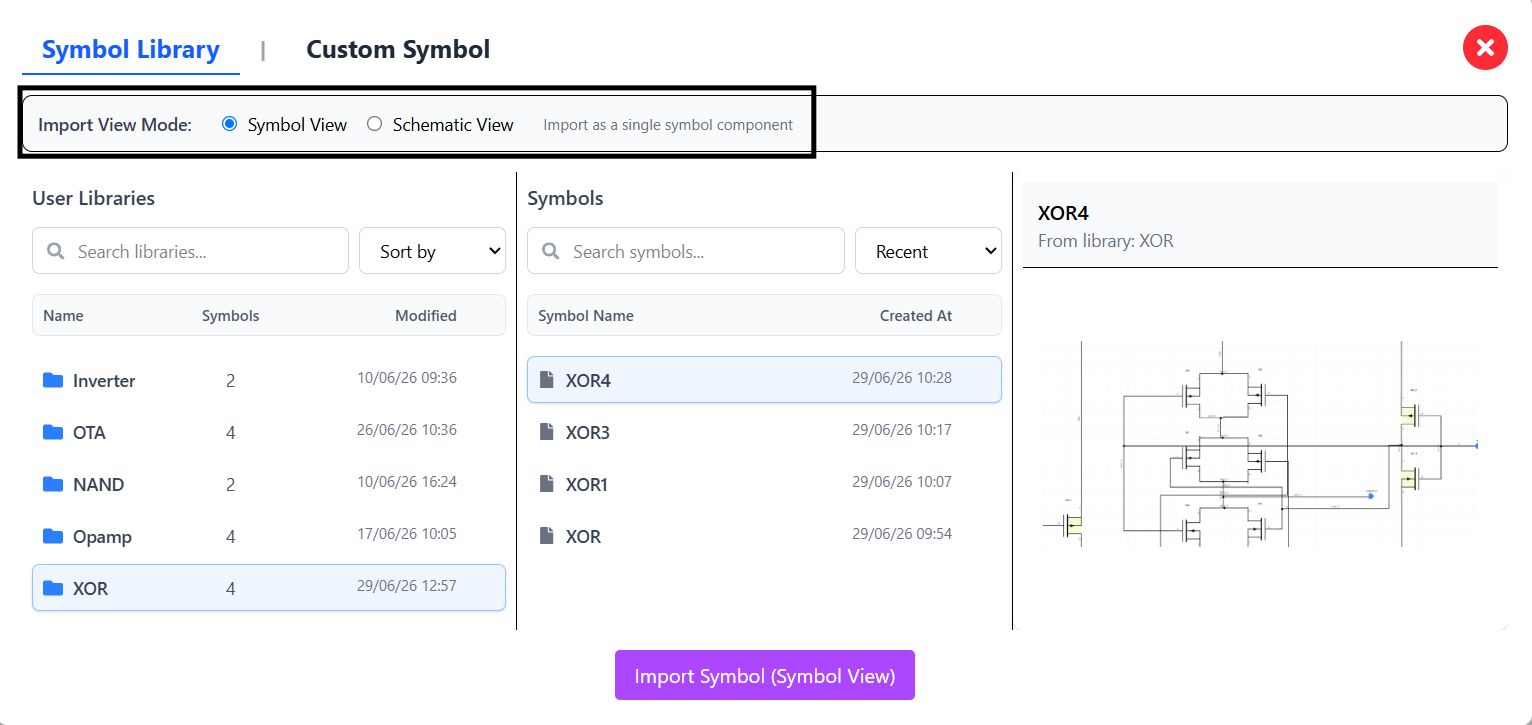
- Select the library or use the search bar or category filters to locate the symbol you need.
- Select the symbol to see a preview, you can also import it in schematic mode.
- Click Import to place the symbol onto the canvas.
- Click on the canvas to drop the symbol at the desired location.
The imported symbol behaves like any other symbol on the canvas and can be moved, rotated, wired, or edited as needed.

tip
If you can't find a symbol you expect to see, check that you're browsing the correct library.
Changing Ports
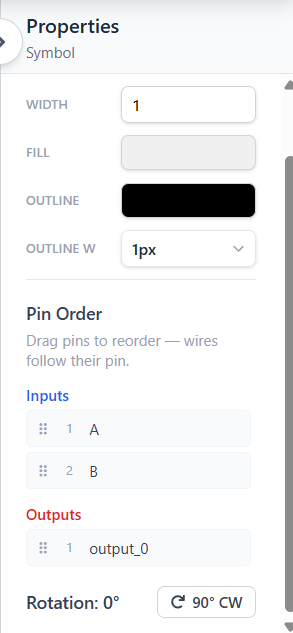
Every symbol has one or more ports (pins) that define its electrical connection points. CircuitPro allows ports to be repositioned, while editing a symbol.
To change the ports on a symbol:
- Select the placed symbol on the canvas.
- Open the Properties panel on the right-hand side, scroll to Pin order.
- To reposition a port:
- With the symbol selected, use the Properties panel to reposition the port.
- Drag the position of ports accordingly.
- Once all changes are made symbol will get updated automatically.