Left Side Panel
Left Side Panel - Slide Manager
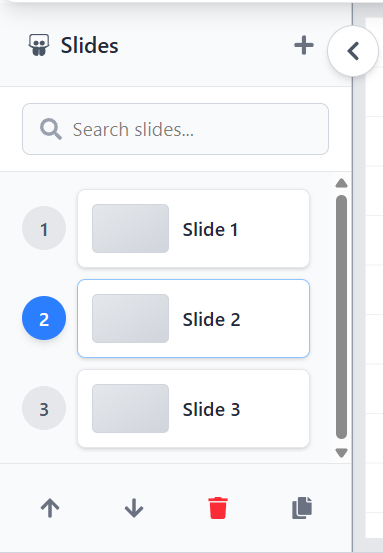
The Left Side Panel shows all slides in your current design. It works like a slide deck; each slide is an independent schematic canvas, ideal for multi-module designs.
Navigating Slides
• Click any slide number circle or slide row to switch to that slide.
• The currently active slide is highlighted in blue.
Managing Slides
Buttons at the bottom of the Left Side Panel:
| Button | Action |
|---|---|
| + (Add) | Adds a new blank slide after the last slide |
| ↑ Arrow | Moves the current slide one position up in the list |
| ↓ Arrow | Moves the current slide one position down in the list |
| Trash | Deletes the current slide (disabled if only one slide exists) |
| Copy | Duplicates the current slide including all components and wires |
Searching Slides
Use the search bar at the top of the Left Side Panel to find slides by component label, wire name, or notes content. Results are filtered in real time as you type.
Tip: Searching by a component name like M0 or clk will highlight all slides that contain a matching label or wire.