Explorer
This is a file manager which enables users to manage their directories, open selected files and perform other file operations.
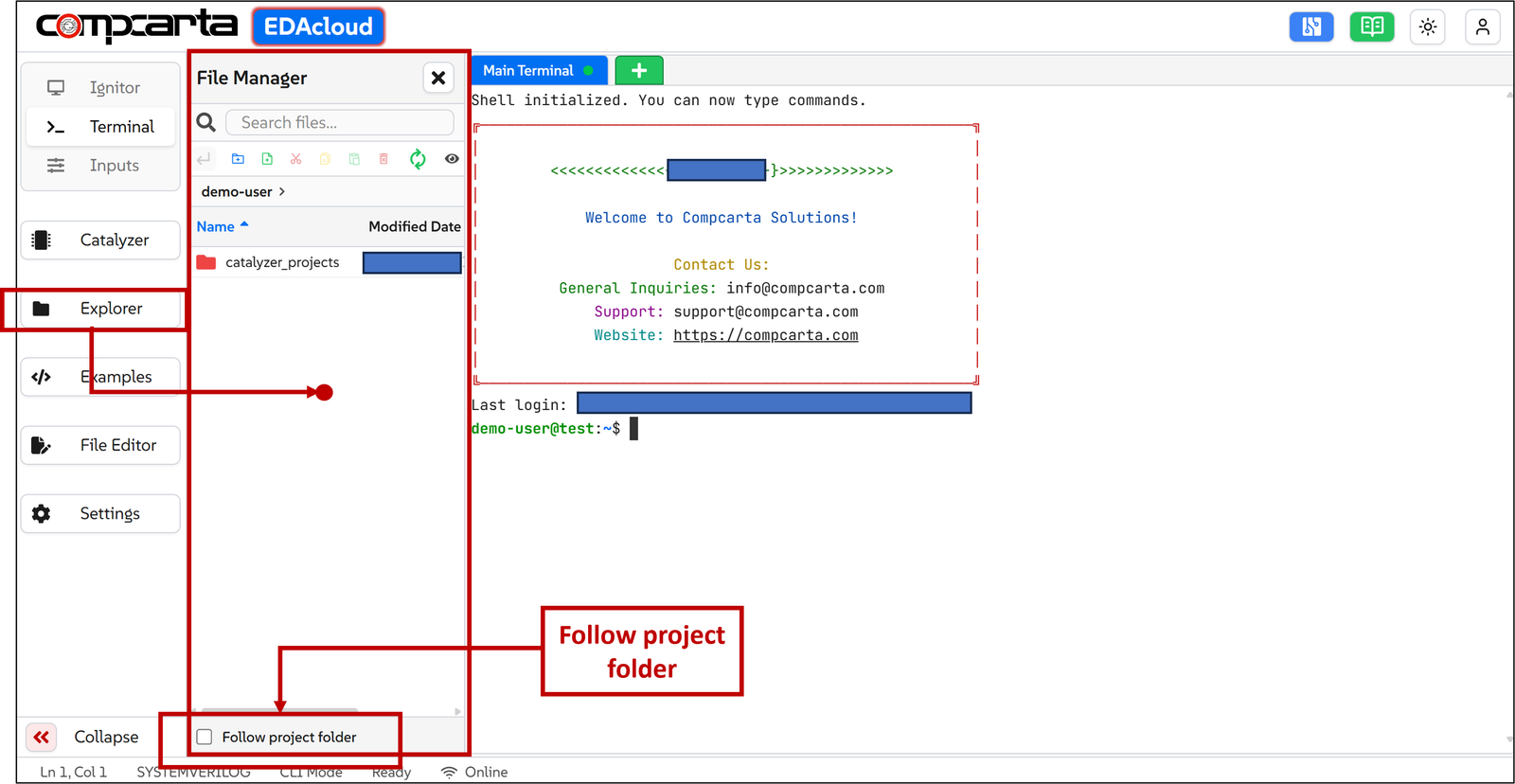
Along with that, it also offers standard file explorer options like:
1. Search ribbon: Here user can type the name of file or folder and make their search faster.
2. Editor ribbon: Here the user can perform following operstions -
-
Go back to previous folder
-
Add a new folder
-
Add a new file
-
Cut, copy, paste, delete and refresh selected files or folders
-
View hidden files
3. Navigation bar: This bar displays the full path to the current file or folder. Users can navigate to any parent directory in the path by clicking on its name within the bar.
4. File explorer: This enables users to browse, open and manage files/folders. Clicking on some file from this explorer will open the file in the File Editor. For more information on File Editor, click here
5. Follow Project Folder: The “Follow Project Folder” checkbox maps the File Explorer to the Ignitor project directory, ensuring that the displayed files are synchronized with the current project workspace. This allows users to directly view and navigate the files associated with the active design.